CinemaCC for Even G2
How to Watch Movies with Subtitles on Even G2
CinemaCC can show the subtitles you prepare in the lenses of your Even G2 glasses while the film plays on the big screen. Here is how to get them from your phone onto the glasses, and how to keep them in step with the picture. The phone keeps the timeline; the glasses show the current line.

In short
- Prepare the subtitles in CinemaCC on your phone, then export them from Settings → Devices → Smart Glasses → Even G2.
- Load the exported file in the CinemaCC companion inside the Even app on your paired phone: tap LOAD and choose the file.
- Press play at the film’s first frame. If the words run ahead of the picture, use BACKWARD; if they lag behind it, use FORWARD.
- The companion plays the subtitles you prepared. It does not listen to the film, translate it live, transcribe the dialogue or search for subtitles itself.
Are subtitles available for a film’s first screening?
Not guaranteed. A new release may not yet have a subtitle file in your language that matches the cinema cut. Search in CinemaCC or import an SRT file you are entitled to use, then check the first spoken lines before you go. If no suitable file turns up, consider a captioned screening or cinema device instead.
What you need
- CinemaCC on your phone: where you find or import the subtitles, and where you export them.
- The Even app, with your G2 paired: you pair the glasses in the Even app, separately from CinemaCC.
- CinemaCC for Even G2: install it from its Even Hub listing in the Even app on your paired phone. Its interface is in English; subtitle-file languages and speech-matching languages are separate capabilities.
Set it up in three steps
- Find subtitles in the CinemaCC phone app, or import your own SRT file.
- Open Settings, choose Devices, then Smart Glasses, then choose Even G2 and export the subtitle package.
- Open CinemaCC in the Even app on your phone and tap LOAD on the left side of the control wheel.
Step 1: Prepare the subtitles on your phone
These screenshots come from the native iPhone app on an iOS 27 Simulator, in English, with self-written example subtitles, captured on October 4, 2026. The preparation and export route is available in version 2.0.5. iOS file controls can look different on your phone, and Android uses its own share and file screens.
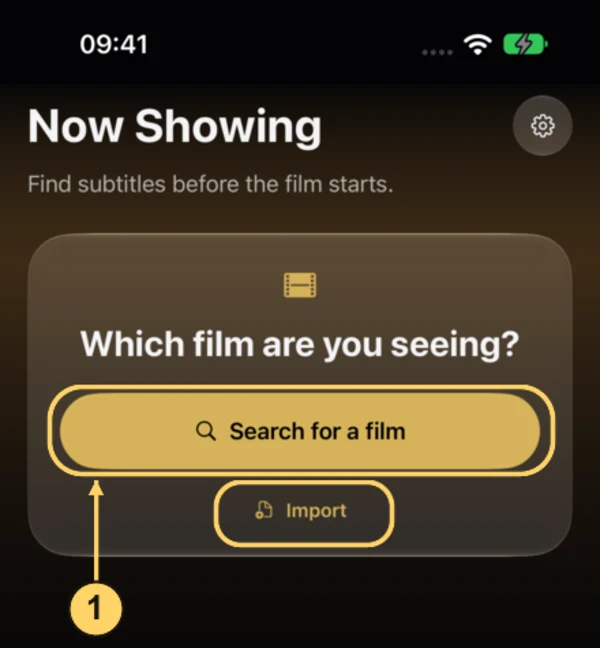
1. Search for the film or import an SRT
Tap Search for a film, then choose the film, your reading language and a matching subtitle release. If you already have an SRT file you are entitled to use, tap Import and choose Browse files instead. The two outlined buttons are alternative starting points, so you only need one.
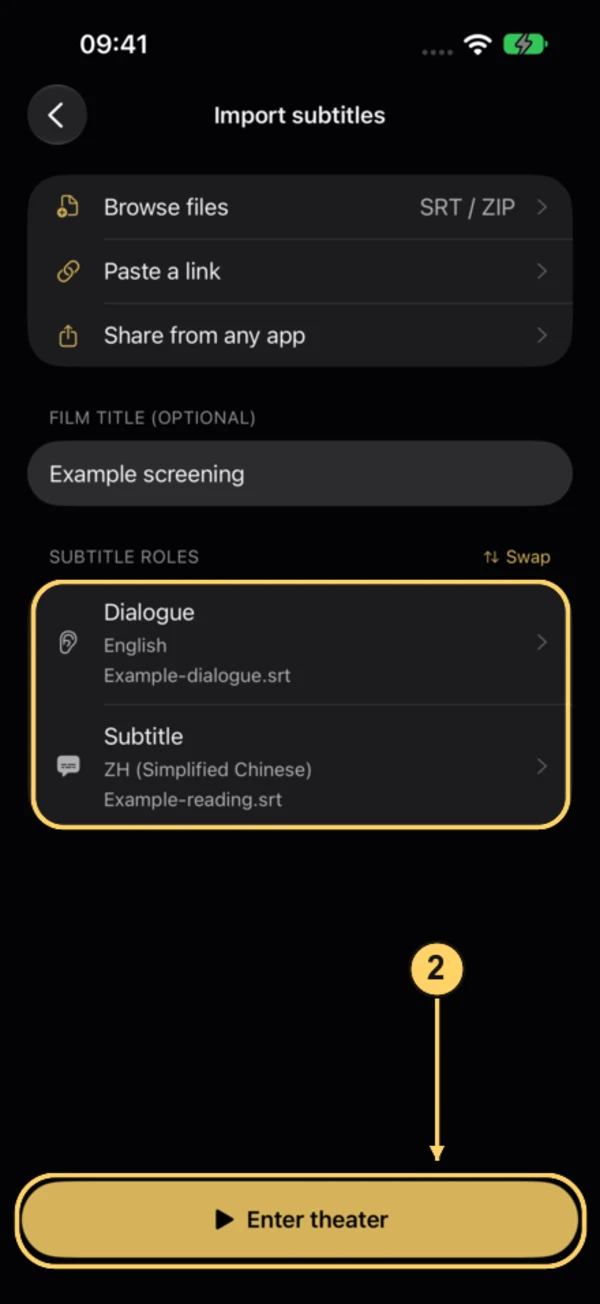
2. Check the track roles and save the screening
In this import example, Subtitle is the language you want to read and Dialogue is an optional second line. Check the file names, languages and film title, and tap Swap if the roles are the wrong way round.
Then tap Enter theater to save and stage the screening. The phone player opens paused. Leave theater to return before exporting; you do not need to start playback on the phone.
Step 2: Export the subtitles as one file
Follow screenshots 3 to 8 in order.
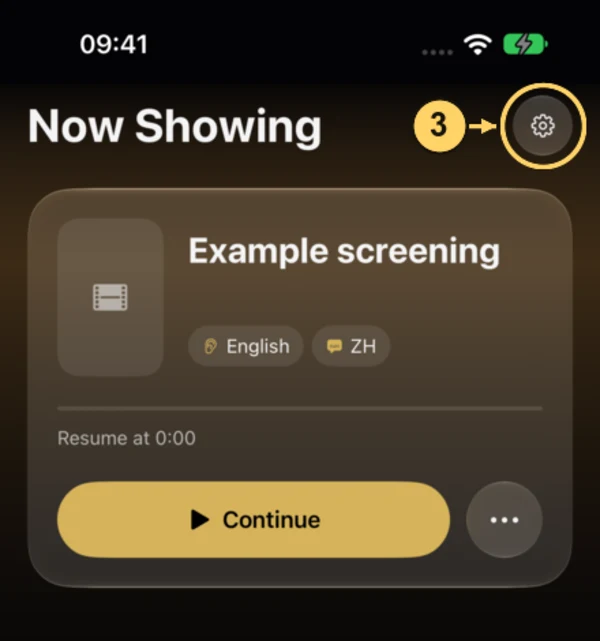
3. Open Settings
Go back to the phone’s home screen and check that the saved film is the one you want. Then tap the gear in the top-right corner.
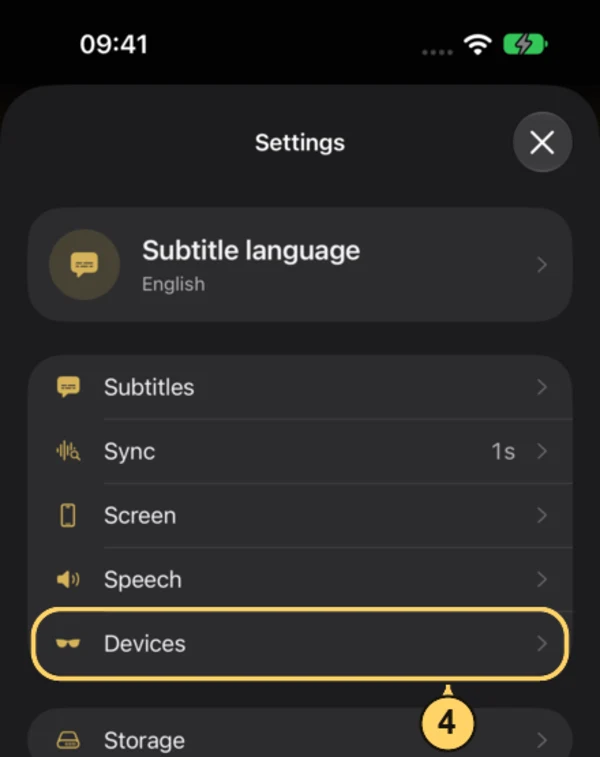
4. Choose Devices
In Settings, tap Devices. The export is not in the subtitle appearance or sync settings.
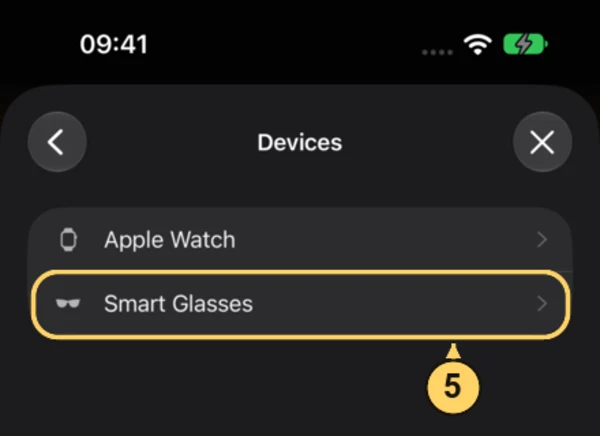
5. Choose Smart Glasses
In Devices, tap Smart Glasses.
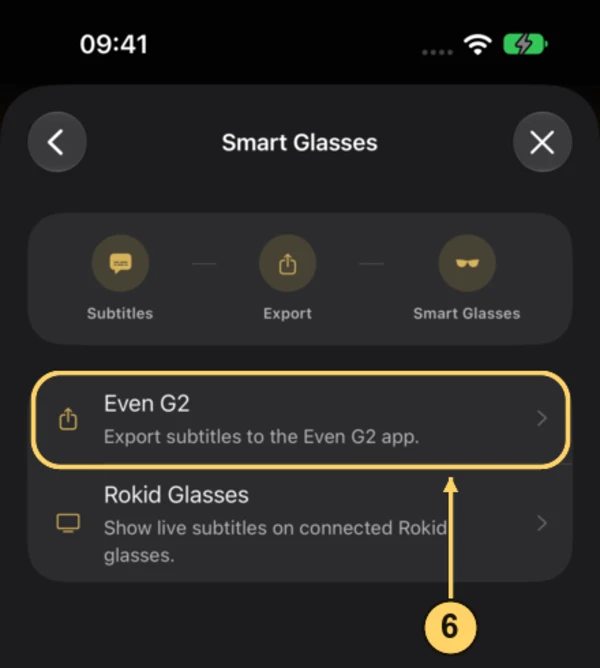
6. Tap Even G2 to export
Tap Even G2. This row exports the prepared tracks as one JSON package and opens your phone’s share options; there is no separate Export button to find on the next page.
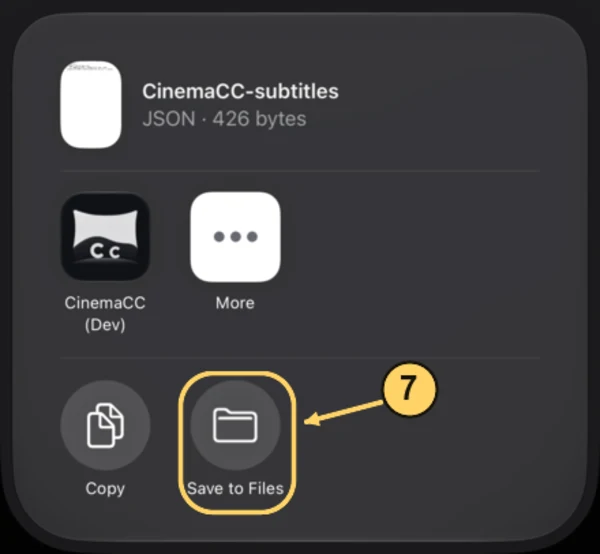
7. Choose Save to Files on iPhone
Check that the share options show CinemaCC-subtitles and the JSON file type, then tap Save to Files. If your iOS version shows a longer list, scroll to find it. On Android, use the system’s file-save or share action and keep the package somewhere the Even app can select it.
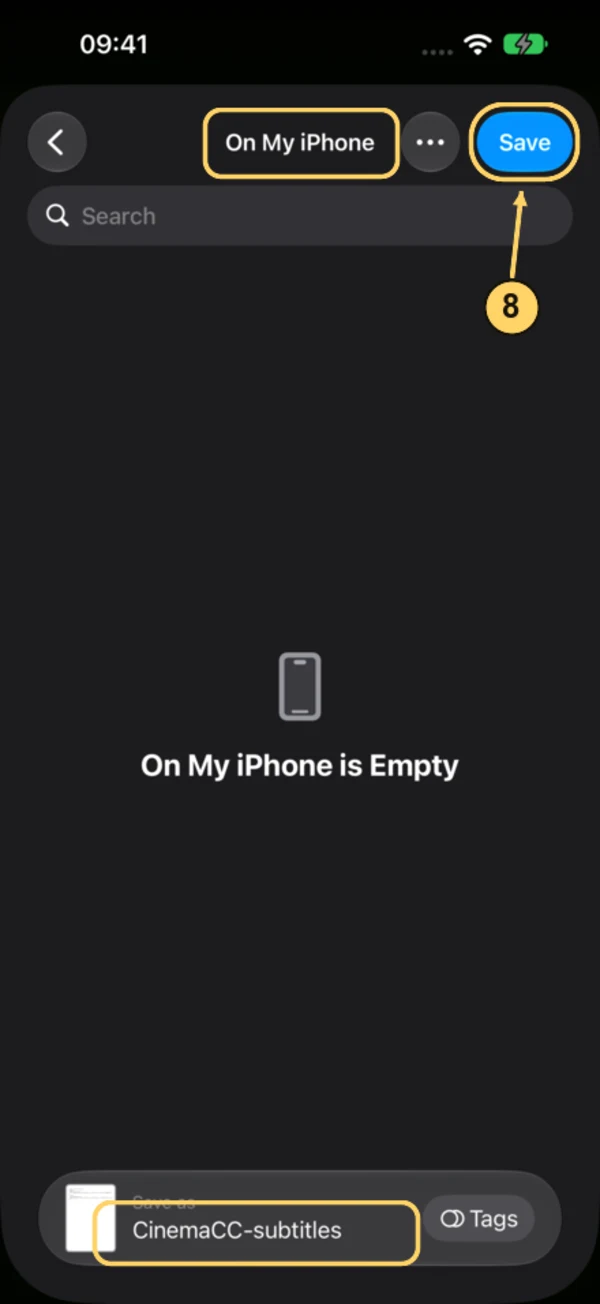
8. Choose a location and tap Save
Pick a folder you can find again, such as On My iPhone, check the file name and tap Save. The file is CinemaCC-subtitles.json, though iOS may hide the extension on this screen. Remember the folder: you will need it for the LOAD picker.
Each export uses the same file name. If you keep packages for several films, choose a different name for each.
Step 3: Load the file in the Even app
Open the CinemaCC companion in the Even app on your paired phone, then load your subtitles in one of two ways. Either way you work with local files: the companion does not search for subtitles.
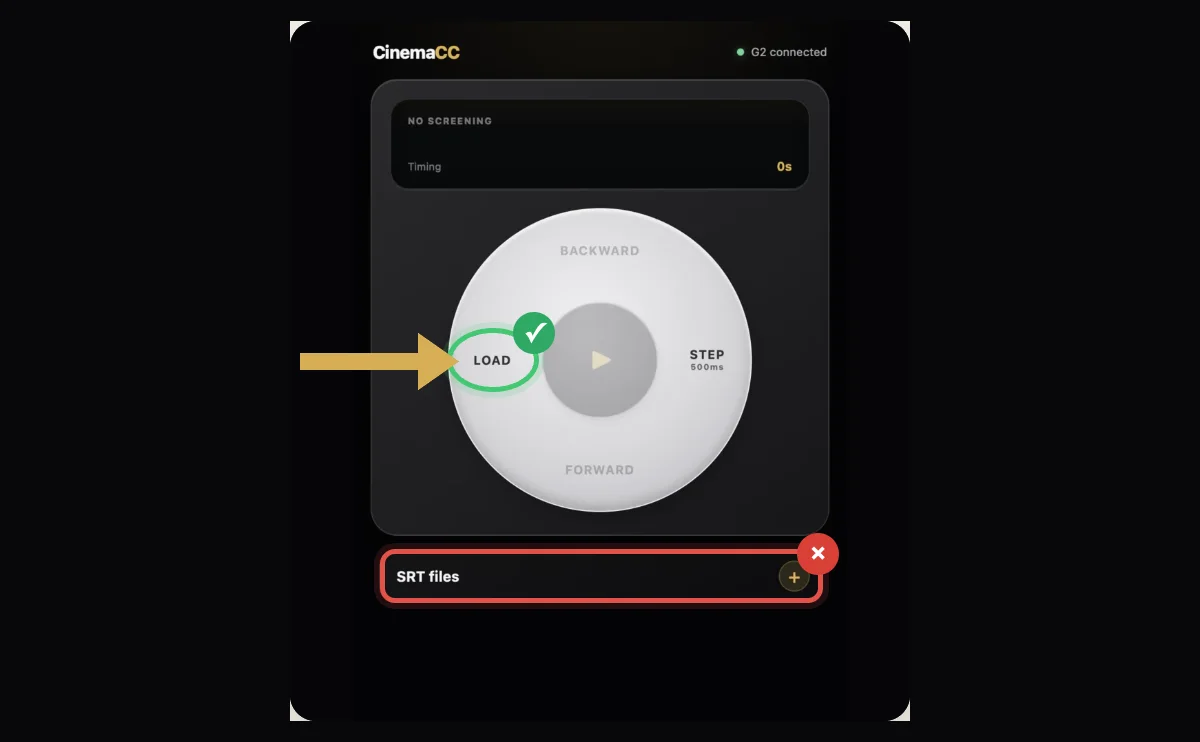
Load the exported JSON with LOAD
CinemaCC exports a JSON subtitle package containing the prepared tracks and their roles. Tap LOAD on the left side of the round controller and choose that JSON file.
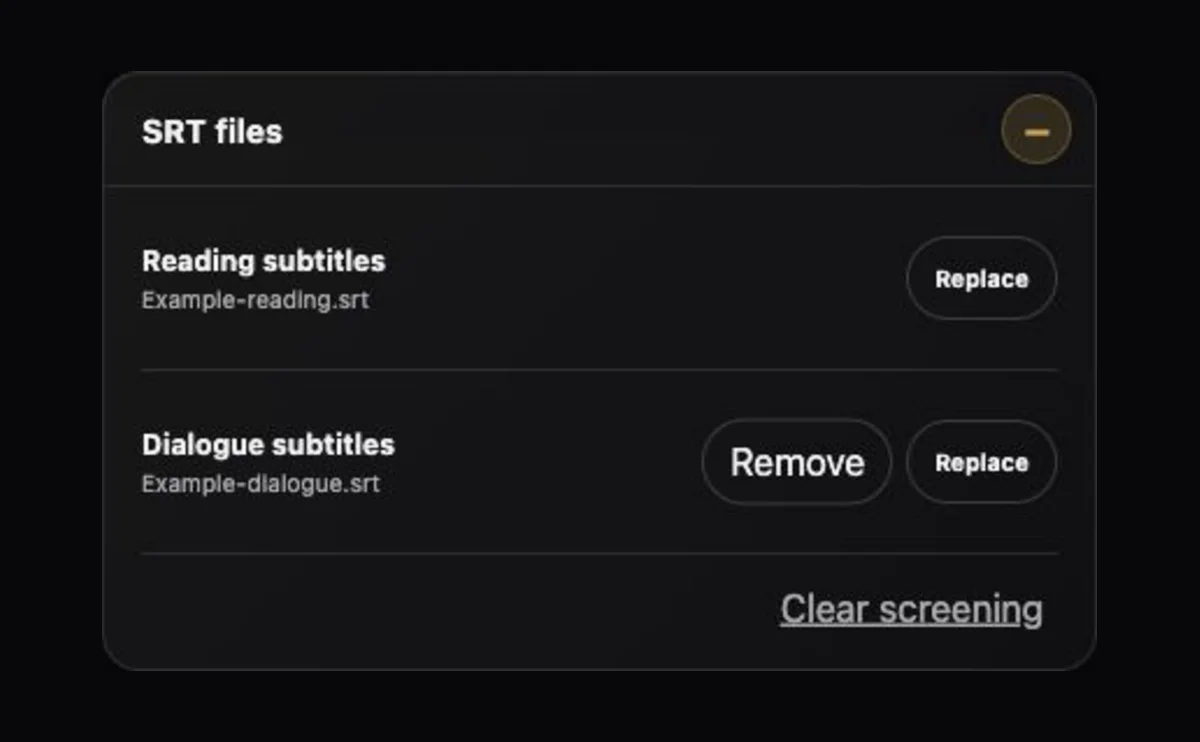
Or add individual SRT files
If you have separate SRT files instead, expand SRT files, add the reading subtitle and optionally add the dialogue subtitle. Do not select JSON in an SRT picker.
At the cinema: start the film and keep the words in step
At the film’s first frame, tap the centre play button on the phone or press the G2.
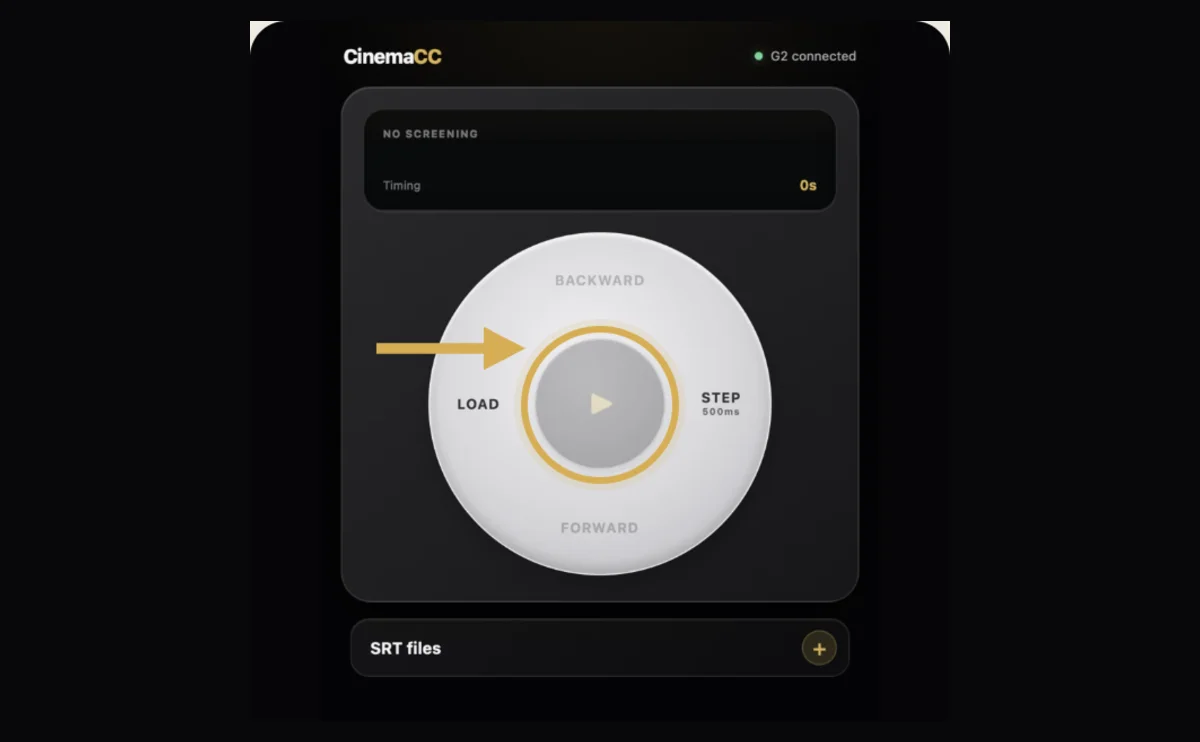
If the subtitles appear before the matching picture, use BACKWARD or swipe up on G2. If they appear after it, use FORWARD or swipe down.
What it does, and what it does not do
It does
- Display subtitles you prepared before the movie.
- Let the phone and the G2 control playback together.
- Let you correct the subtitle timing by hand.
- Keep your subtitle files and the paused checkpoint on the paired phone.
It does not
- Listen to the film through a microphone.
- Translate the movie live.
- Transcribe dialogue automatically.
- Download subtitles from inside the Even G2 companion.
Test it before the lights go down
- Install and check: install the CinemaCC companion from Even Hub and confirm that the G2 shows a cue.
- Load early: load the subtitle file before you enter the screening room.
- Check the opening: look at the first spoken line and at where the subtitle sits in your field of view.
- Learn the controls: practise the press and swipe controls before the film starts.
- Battery and rules: keep the phone charged and follow the cinema’s device policy.
Sources and further reading
These steps describe CinemaCC’s current export flow. Subtitle availability and vendor software can change.