Watching movies abroad
How to Watch a Movie at the Cinema in a Language You Don’t Speak
The film you want is on tonight, but not in a language you understand. You still have options: subtitles on the big screen, a caption device from the cinema, an official app, or your own subtitles in sync on your phone. Here is how to choose, and how to get ready before the lights go down.

In short
- Read the listing for two languages: the one spoken in the film and the one shown in its subtitles.
- If the cinema offers a language you read, on screen, on a caption device or in an official app, use that.
- If it does not, bring your own: CinemaCC shows subtitles you understand in sync on your phone, watch or glasses.
Read the listing first
A subtitle icon only tells you that some captions exist, not which language they are in. Check the cinema’s official listing, or ask the venue, for these details:
- What is spoken: the audio language, and whether the screening is dubbed.
- What is shown: the subtitle or caption language, not only whether captions exist.
- Where the captions are: on the main screen (open captions) or on a separate device (closed captions).
- Whether to book: some devices and special screenings must be reserved in advance.
- Which version plays: the exact cut, release and runtime, if you plan to bring your own subtitle file.
Four ways to follow the film
Subtitles on the big screen
Captions appear on the cinema screen for everyone. It is the simplest option when the language works for you, but open captions may describe the dialogue in the film’s own language rather than translate it into yours.
A caption device from the cinema
Some cinemas lend a small display that sits in the cup holder or clips near your seat. It is private, but languages and devices vary by venue. Reserve one when the venue recommends it, and ask staff to check that it works before the film starts.
An official app with the film’s own track
Services such as GRETA or TheaterEars cover selected films, languages and countries through their own catalogues. They can offer subtitles, dubbing or audio description, and may stay in sync by listening through the microphone. Check that your exact film, language and country are supported first.
Your own subtitles, in sync
When the official options leave out your language, CinemaCC can show one or two subtitle tracks on iPhone, Android, Apple Watch or compatible glasses. Wired display glasses use a compatible iPhone video connection; Even G2 uses a separate Even Hub companion, and the Rokid Glasses integration is experimental.
Getting CinemaCC ready for a screening
CinemaCC is a subtitle companion for a film playing on another screen. It does not transcribe or translate the cinema audio in real time: it plays the subtitles you prepared, in time with the film.
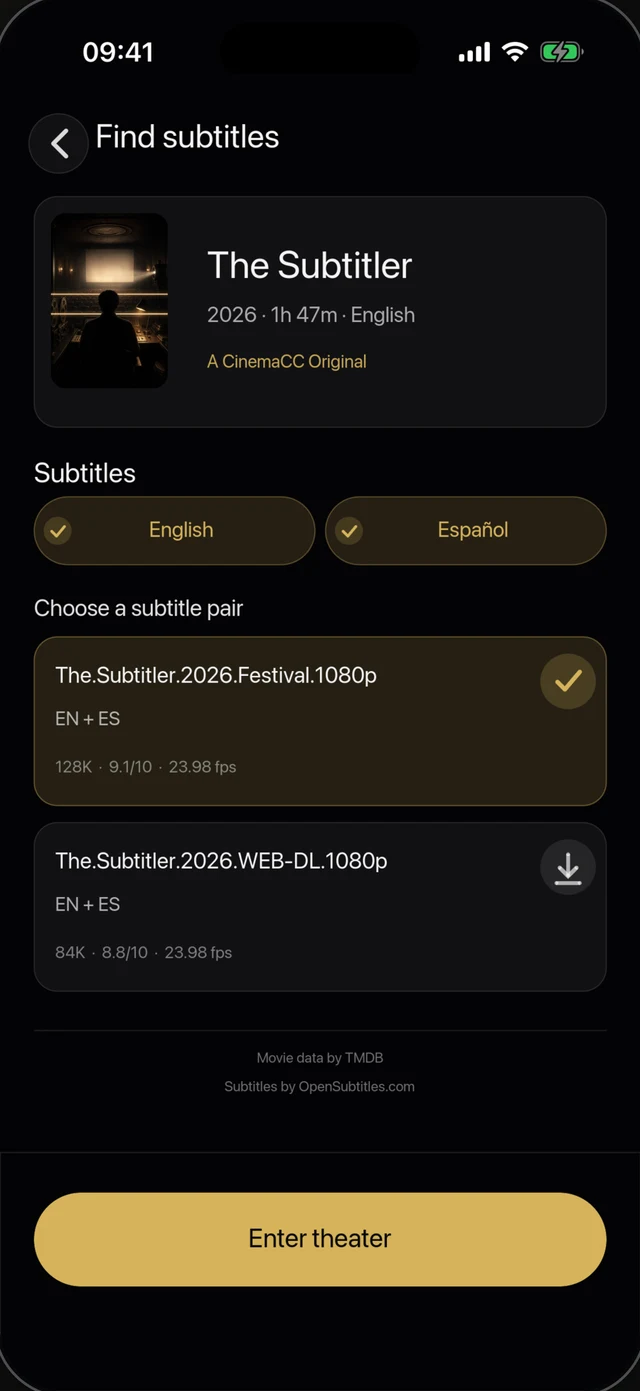
1 · Find subtitles for the film
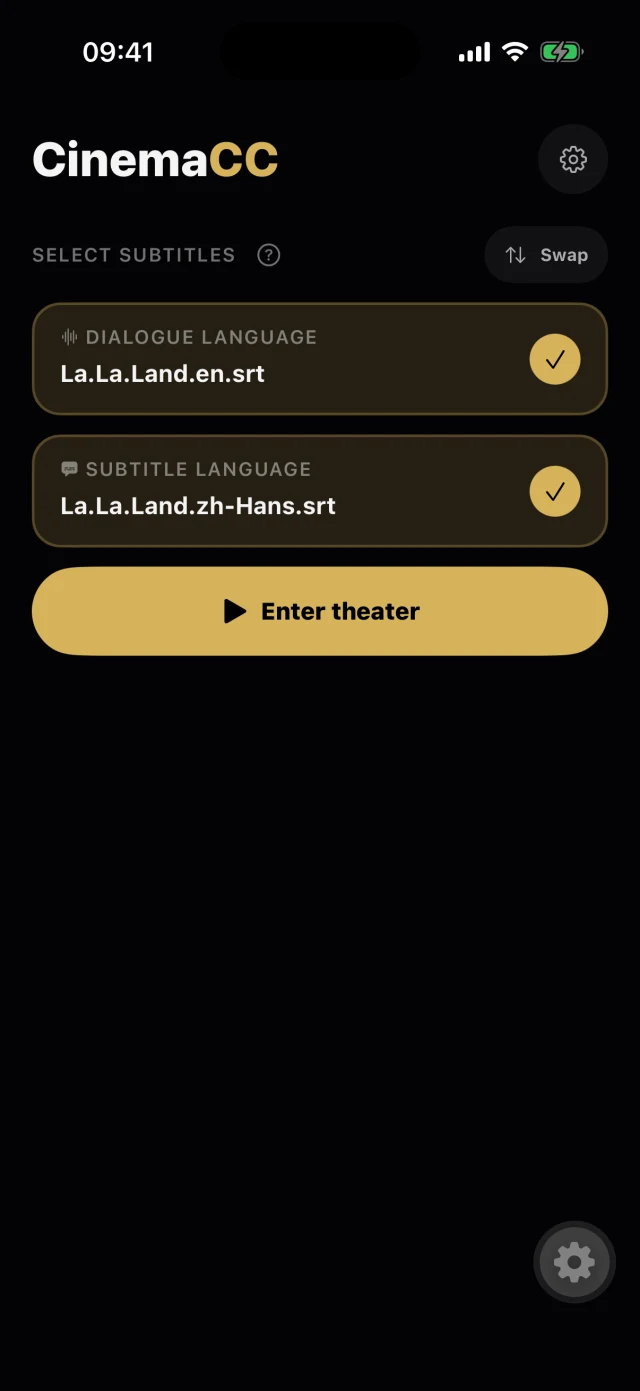
2 · The screening is ready
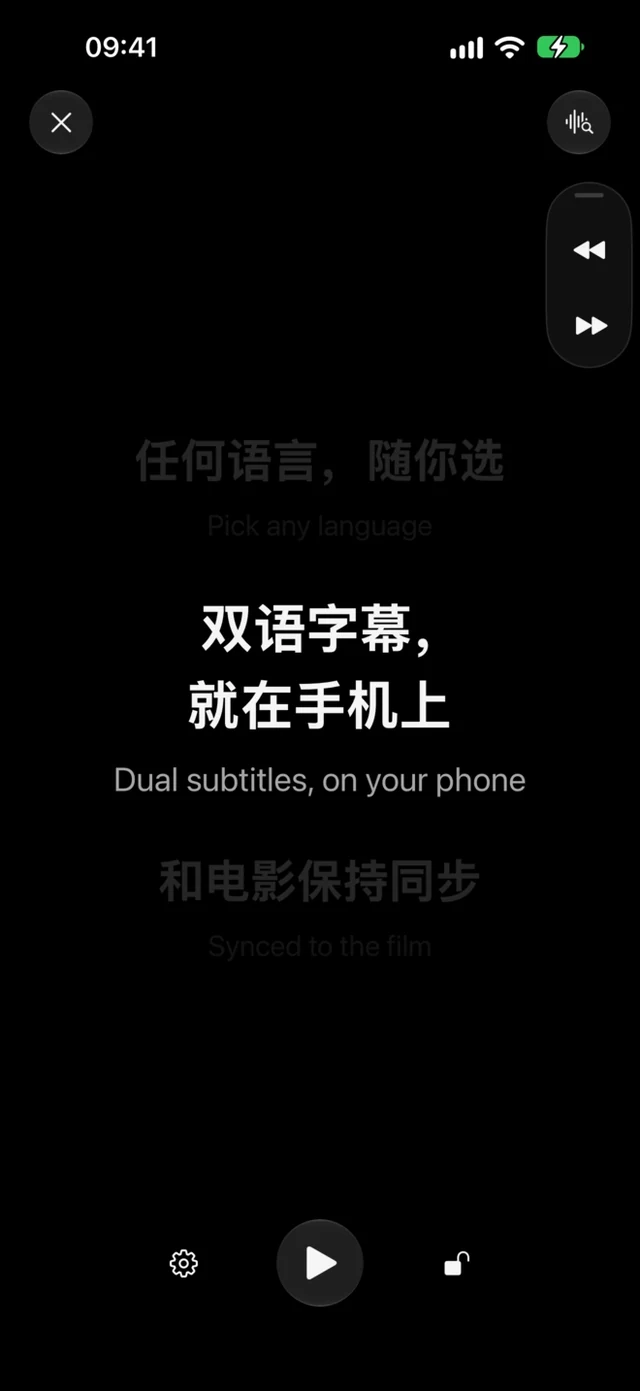
3 · Follow along in the dark
- Before you go in, choose one or two subtitle tracks in languages you understand. The Web player uses local subtitle files, and its setup is explained separately.
- Match the film’s cut and release, then tap Start at the first frame. The installed iPhone and Android apps keep the subtitles playing offline once they are prepared.
- If the lines drift, nudge them back. On supported iPhones running iOS 16.4–18 and iOS 26+, and on Android 13+, Find My Place uses a short on-device microphone sample to match a supported English- or French-dialogue SRT and jump to the current line. Android 12 and the Web player sync by hand only.
- Keep it dark and low. Leave the theater-dark look on, turn the brightness down and hold the device below the sightline of the row behind you. An Apple Watch can show the subtitles while the iPhone stays in your pocket.
Why subtitles drift, and how to avoid it
A subtitle file can start perfectly and still fall behind. Theatrical cuts and streaming releases differ: an extra logo, a recap, an intermission or a frame-rate conversion shifts every line that comes after it.
That is why a matching title and year is not enough. Look for the same release or runtime, test the opening dialogue, and keep another candidate file ready when you can.
What about your phone’s live captions?
Apple Live Captions can transcribe nearby conversations and supported iPhone audio on compatible devices. Android Live Caption captions media and calls playing on the device, and Live Transcribe is Google’s separate tool for speech and sound around you. Supported languages, regions and devices vary.
Be a good neighbour in the dark

- Check the venue’s policy on phones and accessibility devices.
- Set up files and settings before the lights go down.
- Use the lowest brightness you can read, and keep the screen low.
- If the iPhone AssistiveTouch button is too visible, dim it or turn it off automatically while CinemaCC is open.
- Do not photograph, film or record the movie.
- Use Find My Place only when you need it. CinemaCC starts a short microphone sample only after you tap it, processes the audio on the device and discards it after the attempt.
Before you rely on your own subtitles
Get the language ready before you leave: find a matching subtitle track or, if there is none, translate a suitable source file and review the result. CinemaCC offers optional paid AI subtitle translation online before the screening.