Prepare before the lights go down
Before You Bring Phone Subtitles to the Cinema: A Practical Checklist
You plan to read your own subtitles at the cinema, and the film will not pause while you fix a setting. A wrong cut, an unopened file or an empty battery is easy to sort out at home and hard to sort out in the dark. This checklist follows your evening in order: work through it once at home, then skim it again in the lobby.
In short
Most of the work happens before you sit down.
- At home, match the file to the film: use a subtitle file you are entitled to use, check the version and runtime, test the opening dialogue, keep a backup and load it into the installed iPhone or Android app.
- Before you leave, charge your devices and test the exact setup you will use. Prepared subtitles play offline in the installed apps.
- In your seat, silence notifications, set the lowest brightness you can read, start the subtitles at the first frame and nudge the timing if the lines drift.
- Follow the venue’s rules for phones and devices, and never photograph, film or record the movie.
What to do, and when
The checks fall into three moments. Settle as much as you can at home, give your devices one last look before you leave, and leave only the quick things for your seat.
Before you buy the ticket
- Check the languages on the listing. Confirm the showtime’s dialogue language, any dub and the on-screen subtitle language. The cinema may already offer the right option.
- Check the runtime and the cut. Look at the listed runtime and, when possible, the theatrical cut or regional version. A streaming or home-video subtitle may use a different timeline.
- Check the venue’s rules. Look up its policy on phones and accessibility devices. Do not assume every cinema accepts a lit personal screen.
At home: get your subtitles ready
CinemaCC plays the subtitles you prepare, in time with a film on another screen. It does not transcribe or translate the cinema audio in real time. New to it? Get the app for iPhone or Android, or watch the demo first.
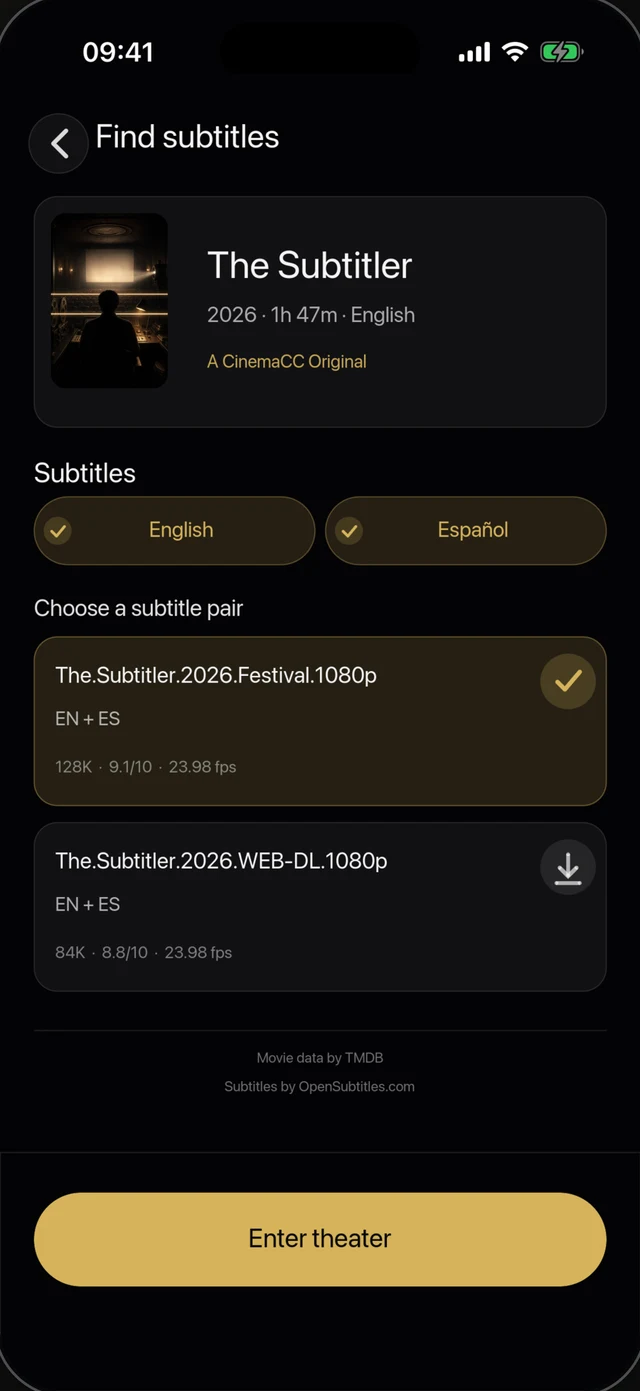
1 · Find or import the subtitles
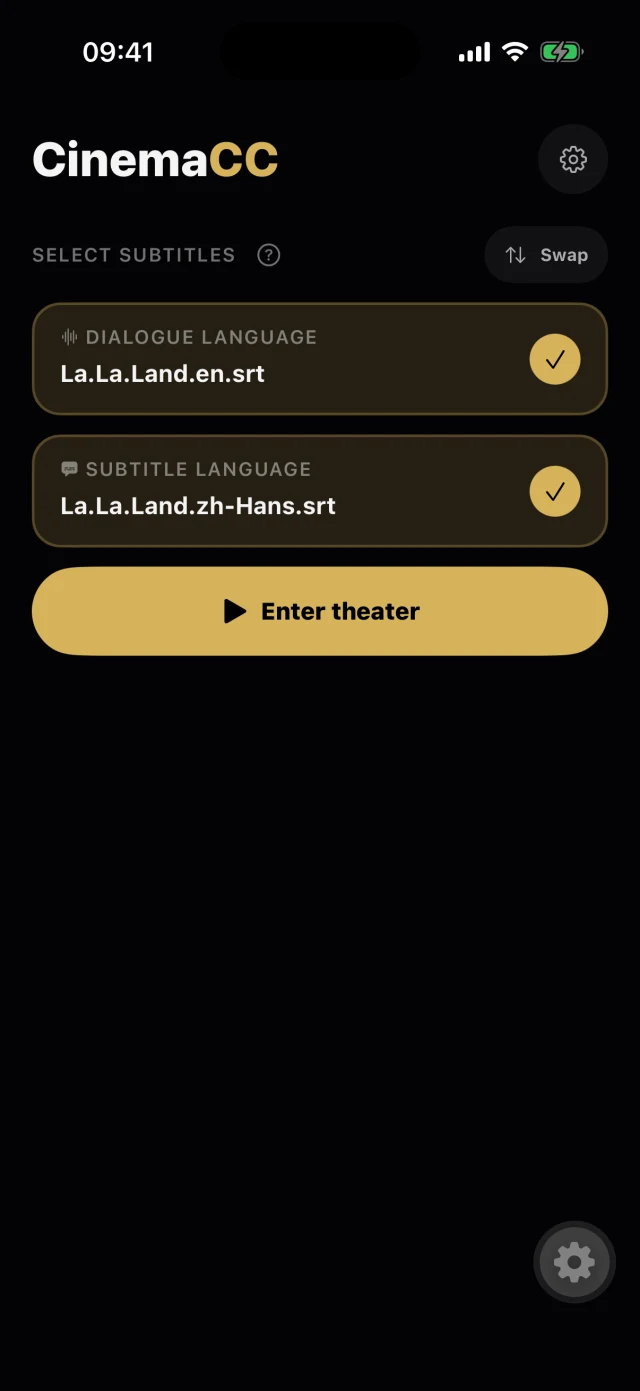
2 · The screening is ready
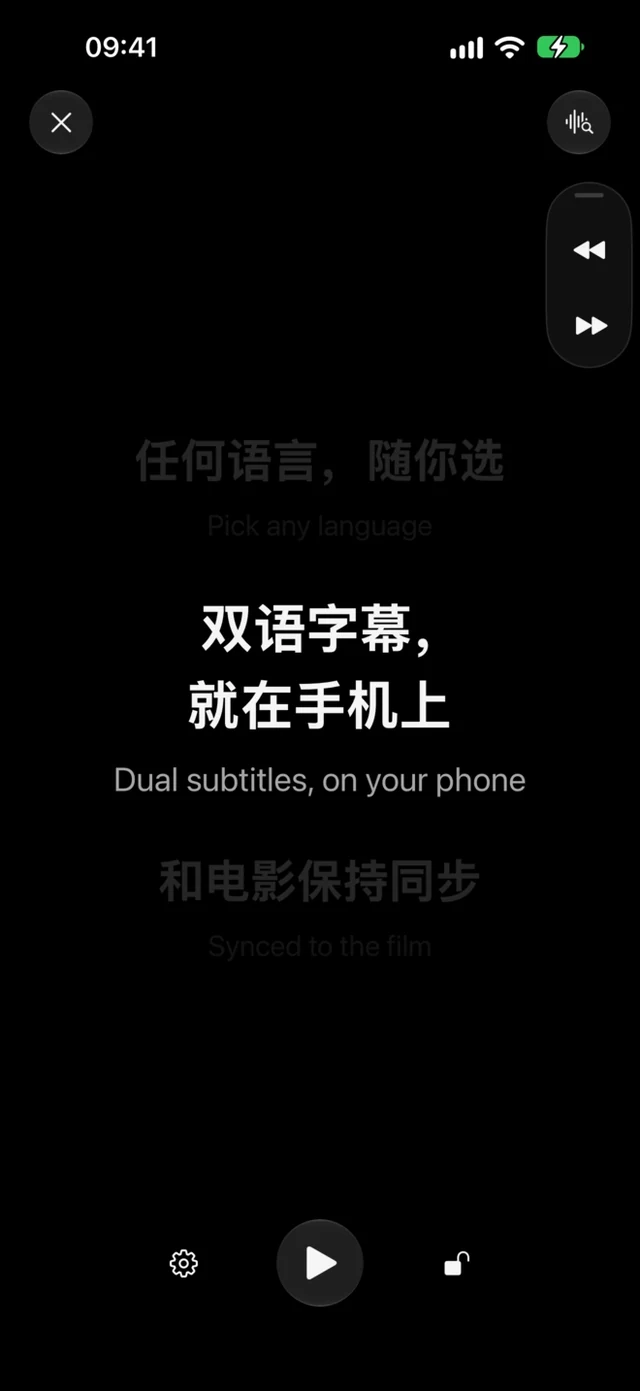
3 · Play it once at home
- Choose a subtitle file you are entitled to use. CinemaCC displays the file you choose; it does not grant rights to that file. Search for the film in the app or import your own SRT, and pick one or two tracks in languages you understand.
- Cover a missing language. If no track exists in your language but CinemaCC offers a suitable source, you can preview it and buy an optional AI translation. It runs online, so finish it before the screening. Review the result before you rely on it, and see what to prepare when a language is missing.
- Test the opening lines. Open the file and check the first spoken lines against the same version of the film when you can.
- Keep a backup. Prepare a second file if another release has a similar runtime. A backup is faster than searching after the lights dim.
- Load it, then try it offline. Import the file into the installed iPhone or Android app, switch on airplane mode and play it once. For the Web player, load the page and import the file before you leave, then keep the tab open. It keeps only what is in the current tab, so reloading or closing it clears your import, and it cannot be reopened or reloaded offline.
Before you leave: check your devices
Check only the devices you will use, and test that exact setup. Keep the phone screen available as a fallback.
On your phone
Charge it. Check whether battery-saver settings pause the app on your device, and change them only if needed.
On your Apple Watch
Charge it if you plan to use it, and check that it is a supported watch (watchOS 10 or later). Prepare and send the subtitles from the iPhone first, then check that they play on the watch.
On wired display glasses
They need a compatible iPhone video connection. Test the exact iPhone, cable, adapter and glasses together: iOS has to recognize them as an external display.
On Even G2 or Rokid Glasses
Even G2 uses the separate Even Hub companion with manual timing, so do not assume the phone app’s Find My Place works there. The Rokid Glasses integration is experimental; do not confuse it with Rokid Max, which uses a standard video input. Setup details: the glasses guide and the Even G2 guide.
In your seat, before the lights go down
- Silence the phone. Turn on Do Not Disturb, and silence vibration if it could distract you or the people around you.
- Turn the brightness down. Set the display to the lowest brightness that remains readable to you. If the iPhone’s AssistiveTouch button is too visible, you can dim it or turn it off automatically while CinemaCC is open.
- Open the subtitle session. Choose the correct primary and optional second track, and complete text-size or SDH settings now.
- Place the device low. Put it where you can glance at it without holding it up in another viewer’s line of sight. If that is not workable in your seat, do not force the setup. Put the phone away if the screen still distracts other viewers, or if staff ask you to stop.
When the film starts
- Start the subtitles on the first frame. Press play at the film’s first frame, or at the start point you tested.
- Nudge, do not restart. If the text is slightly early or late, use the back and forward timing buttons instead of repeatedly restarting the session. On supported phones, Find My Place can also jump to the current line. Both are explained in the next section.
- Compare one clear line. If the gap keeps growing, stop adjusting for a moment and check whether the file is early, late or from a different cut.
- Switch to the backup file. A growing gap may mean the file matches a different cut rather than having a simple one-time offset. Switch when that is faster than adjusting, and also if the offset changes after scene transitions, logos, recaps or an intermission.
Two ways to get back in step
Every CinemaCC platform has the timing buttons. Find My Place is a second way, on supported phones.
The timing buttons
iPhone, Android and the Web player all let you start the subtitle timeline and re-align it by hand with two double-arrow buttons. The back button pulls the subtitles back when they run early, and the forward button skips them ahead when they run late. Android 12 and Web remain manual: they use these buttons to recover timing and do not offer Find My Place.
Find My Place
On supported iPhones running iOS 16.4–18 or iOS 26+, and on Android 13+, you can tap Find My Place when you need it. CinemaCC then briefly processes microphone audio on the device to match the current position against a supported English- or French-dialogue SRT. The audio is discarded after processing. The feature does not continuously listen, transcribe or translate the movie.
Sources and further reading
Provider coverage, cinema listings and platform support can change. Sources were checked on August 19, 2026.