Subtitles on a second screen
How to Watch a Movie With Subtitles on Your Phone
The film is on the television, a laptop or the cinema screen, but its subtitles are missing or not in a language you read. CinemaCC leaves the picture where it is and runs the subtitles you choose, in sync, on your phone or Apple Watch. Here is what to prepare, how to start together and what to do when the timing slips.
In short
CinemaCC shows subtitles you understand, in sync, on your phone, Apple Watch or another supported personal display. The movie itself keeps playing on the television, laptop, projector or cinema screen.
- To start: open one or two SRT subtitle files in CinemaCC and start the subtitle clock at the film’s first frame.
- Which version: the installed iPhone and Android apps keep prepared screenings and can play them offline. The Web player is for one temporary browser session.
- If the lines drift: nudge the timing by hand. Supported iPhones and Android 13+ phones can also use Find My Place, which can jump to the current line after you tap it.
What you need before the movie starts
- A movie on another screen: a television, laptop, projector or cinema screen.
- One or two SRT files: files you are entitled to use, matching the movie’s cut, release and runtime as closely as possible.
- CinemaCC: the iPhone or Android app, or the session-only Web player in a modern browser.
- A quick test: compare the opening dialogue with the film before you rely on the file for the whole movie.
Which version of CinemaCC should you use?
Pick by what has to last and where you want to read, not by which device is closest.
iPhone
The installed iPhone app keeps prepared screenings and playback state on the device. You can read on the iPhone or send a subtitle-only view to a compatible display connected to it. Supported iPhones also have Find My Place, an on-demand way to recover the current line when a supported English- or French-dialogue SRT drifts.
Apple Watch
Apple Watch works with a paired iPhone. Prepare the screening there and transfer it to the watch, and the subtitles can run on your wrist while the iPhone stays in your pocket.
Android
The installed Android 12+ app keeps screenings and playback state for later use. Manual timing controls work on Android 12+, while Find My Place is available on Android 13+.
Web player
The Web player imports local SRT files and keeps them only in the current browser tab. It is useful for a temporary manual-sync session, but reloading or closing the tab clears the files and playback state. It has no microphone recovery flow, persistence, service worker or offline cold start.
How to start the subtitles in sync
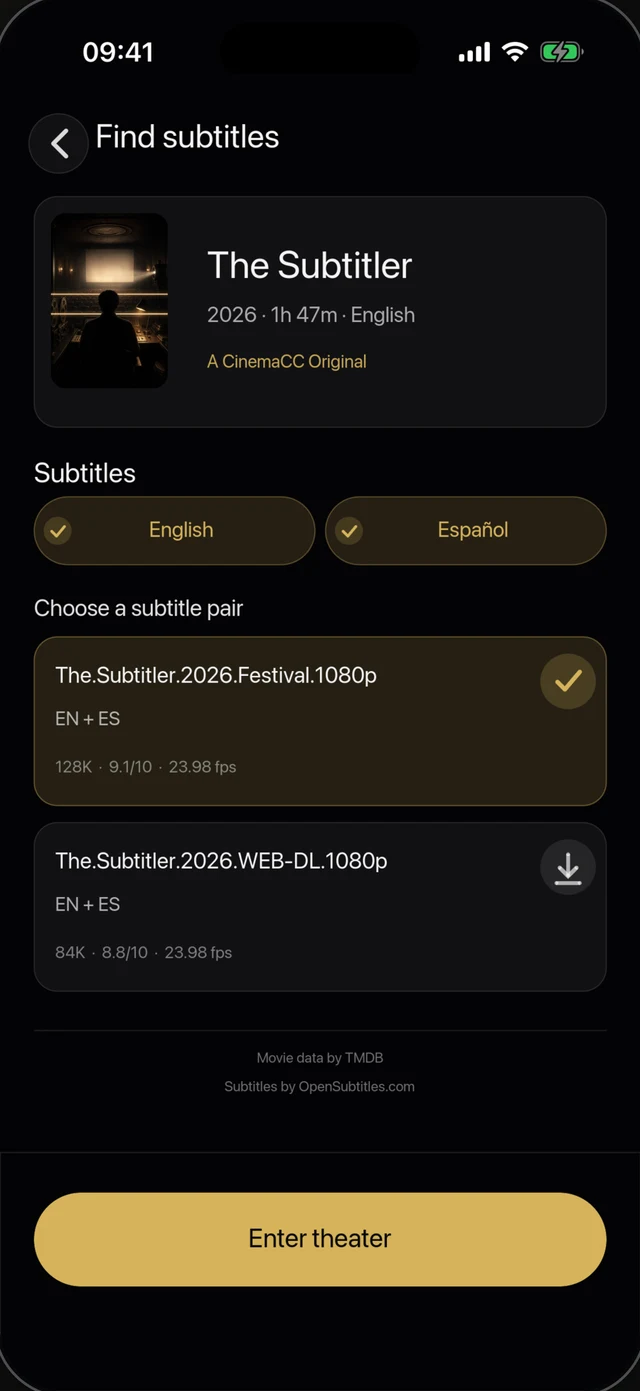
Find your subtitles
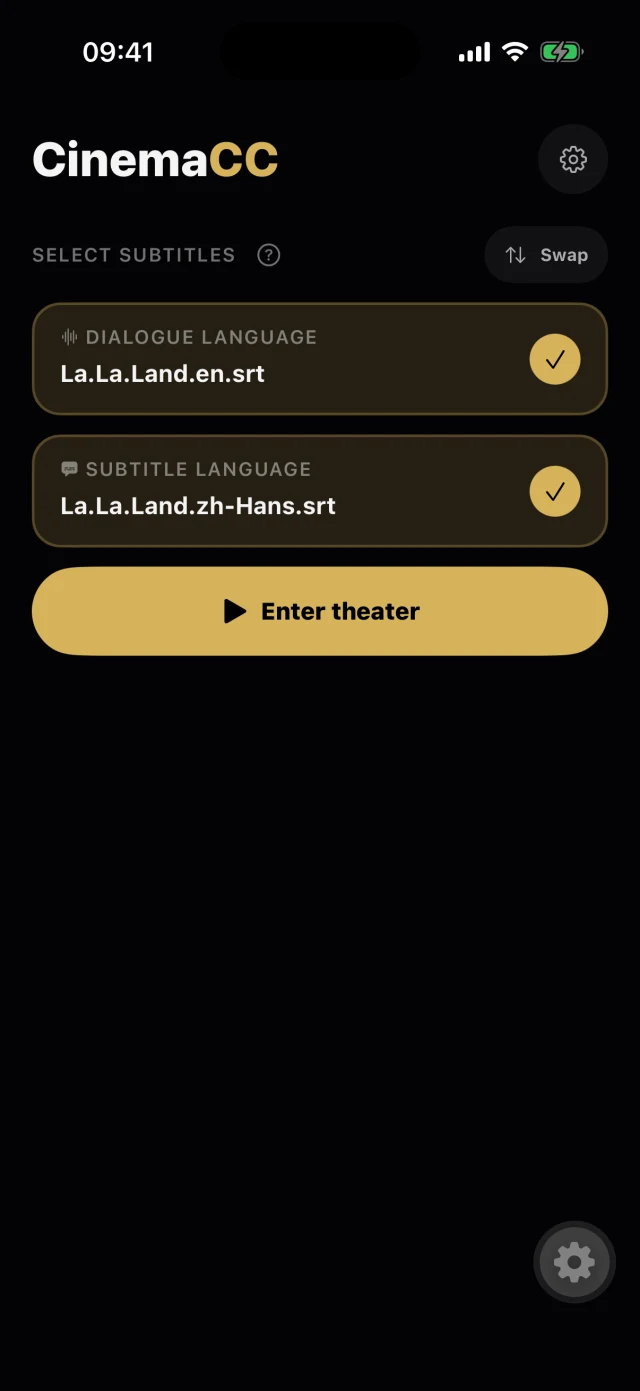
Your screening, ready
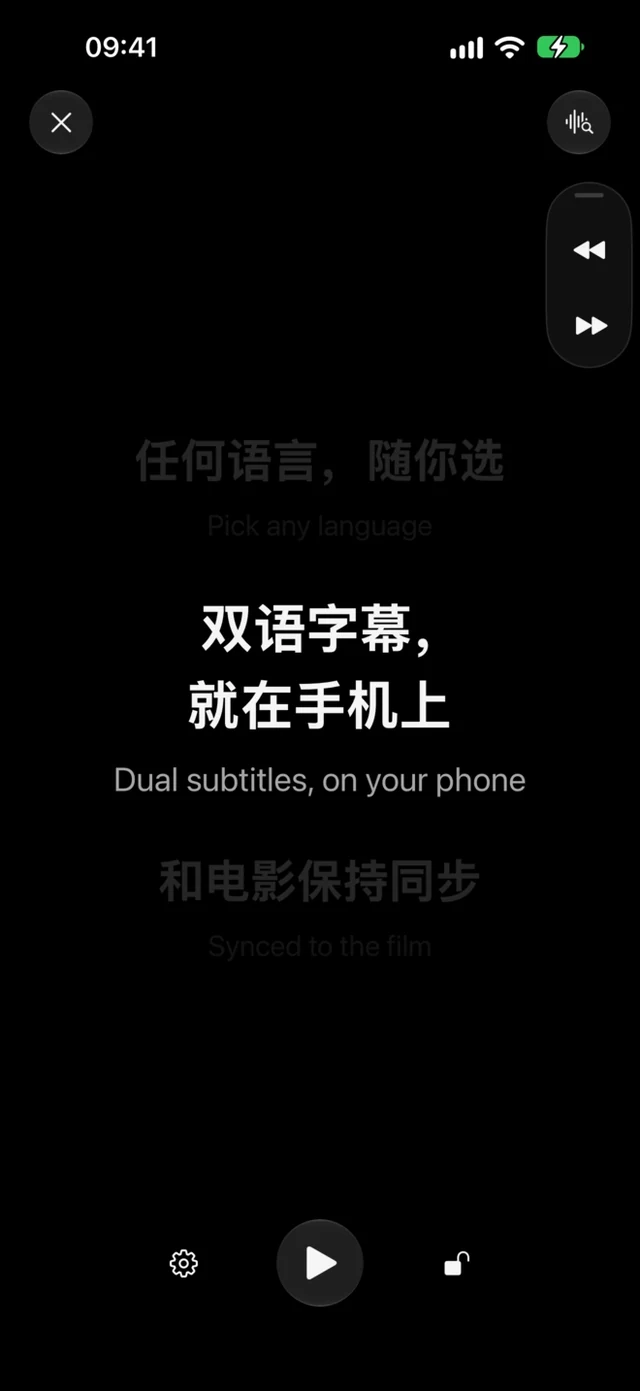
Read along
- Cue the movie. On a television, laptop or projector, open the movie and pause before the first frame. In a cinema, have everything ready before the film begins.
- Choose your subtitles. In CinemaCC, pick the one or two tracks you want to read. The installed apps can search by film title or open your own SRT file; the Web player imports local SRT files.
- Check the match. Make sure the file and the movie open with the same dialogue and run for a similar length.
- Start both together. Start the subtitles in CinemaCC at the movie’s first frame, the moment you press play or the film begins. Then read on your phone or watch while the movie stays on the main screen.
What to do when the timing slips
- Early or late by the same amount: nudge the timeline backward or forward.
- The gap keeps growing: the SRT may come from a different release, frame rate or cut. Try a better-matched file instead of correcting every scene.
- A jump at one scene: if dialogue, logos, recaps or intermissions differ between versions, expect a larger jump in the subtitle timeline.
- You have lost your place: on supported iPhones (iOS 16.4–18 and iOS 26+) and on Android 13+, tap Find My Place. Android 12 and the Web player sync by hand only.
Can you show two subtitle languages at once?
Yes. CinemaCC can display one or two tracks together, so two viewers can follow the same film in different languages or one viewer can keep a translation beside the original-language subtitle. Both files still need to match the version playing on the other screen.

- Main track: put the language you rely on most in the primary reading position.
- Second track: use it for a partner, a family member or the film’s original language.
- Dialogue check: try a dialogue-heavy scene before the movie. Two correct translations can still use different cue boundaries.
- Repairs first: if a track needs repair or translation, prepare and review it before importing it into CinemaCC.
Will it work without internet?
- Installed iPhone and Android apps: prepared screenings can keep playing without an internet connection.
- Web player: it can continue with files already loaded in an open tab, but it does not support an offline reload or cold start.
What CinemaCC does not do
- Not a video player. It does not move, stream or copy the movie to your phone.
- Not live captioning. It does not continuously transcribe or translate the soundtrack.
- Not a match guarantee. It does not guarantee that a subtitle file matches every theatrical, streaming or home-video release.
- Not a subtitle host. It does not host the subtitle bytes returned by a third-party source.
- Not an exemption. It does not override a cinema’s phone, recording or accessibility-device rules.
Try it at home first
Start with a film you can pause. Load one or two subtitle languages, compare the opening dialogue and practise a timing correction before you rely on the setup in a cinema. A product demonstration shows the workflow, not a guarantee that your subtitle file or glasses will work in a particular cinema.
- See it work: Watch the CinemaCC product demo
- See what goes wrong: Read the creator’s cinema tests, including mismatches and recovery
- Get ready: Prepare your subtitles and display
Sources and further reading
Provider coverage, cinema listings and platform support can change. These first-party pages document the current product surfaces, privacy boundary and store availability, so check them before relying on a specific platform feature.